
More hardware choice
Communities can evaluate compatible televisions in the screen size and price range that fits the room instead of being locked into one proprietary display.
 Practical hardware for app-based community displays
A television does not need to become a complicated IT project to become useful community signage. Compatible Google TV devices can provide a familiar, app-based foundation while ChimeBuddy handles the senior-living-specific work: activities, dining, announcements, videos, remote screen management, and day-to-day content updates.
This guide focuses on the hardware and deployment side of the equation—not just the signage features. Google TV is a platform; ChimeBuddy is the software that turns the screen into a managed senior living communication tool.
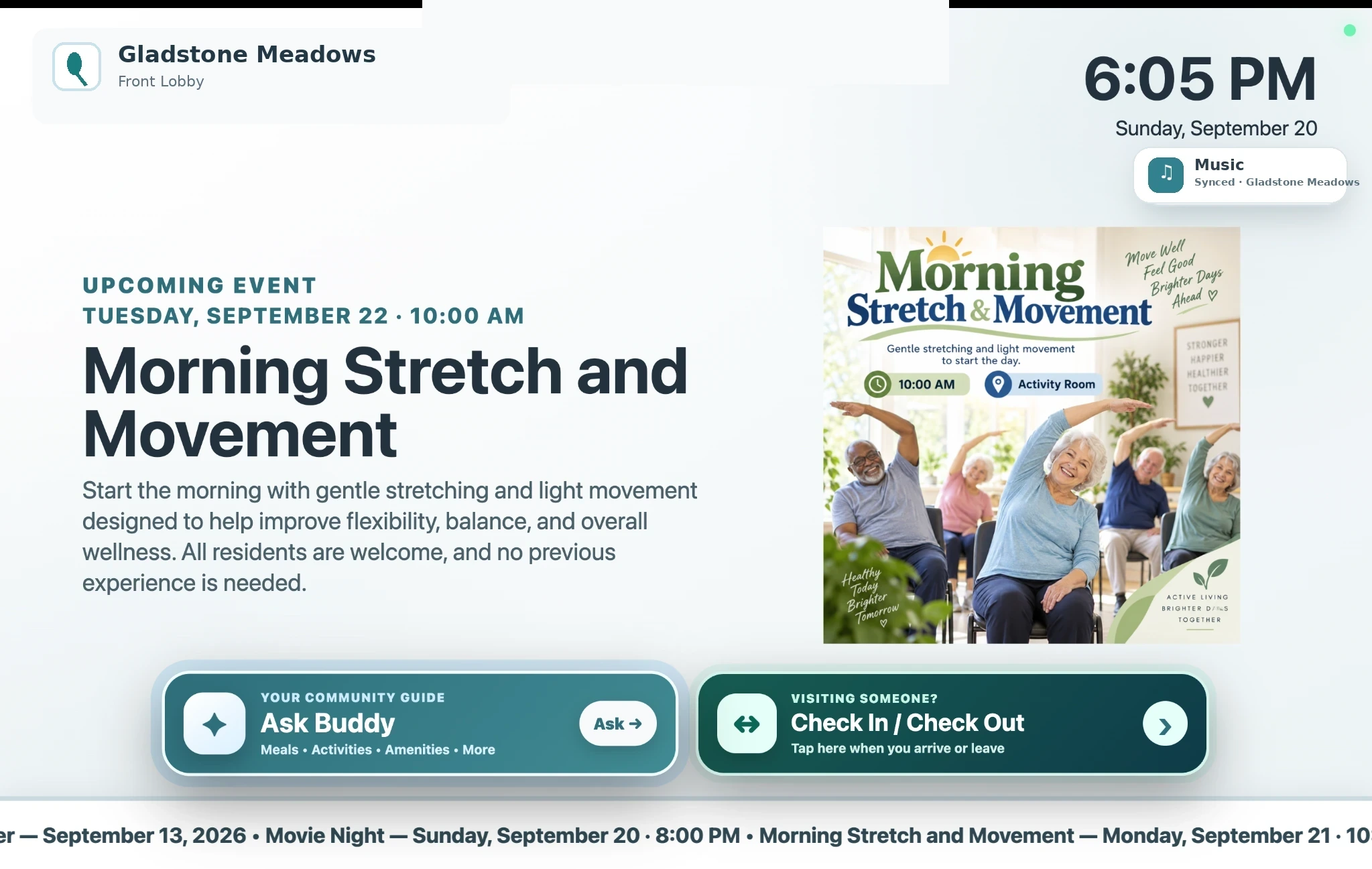
For many communities, the hardest part of digital signage is not creating a calendar or announcement. It is deciding what hardware should stay connected to the screen, how staff will install the software, and whether each display needs a dedicated computer or proprietary media player.
Google TV can simplify that hardware conversation because it is already an app platform. Google offers Google TV both on smart televisions and through compatible streaming hardware, which means a community may be able to choose from familiar consumer displays instead of starting with specialized signage equipment.
That flexibility matters in senior living. A lobby may need a large landscape display, a dining room may need a smaller menu screen, and an activity area may already have a television mounted on the wall. The goal is not to force every screen into the same hardware package. It is to choose a reliable display setup and let the signage software keep the information consistent.
The value is less about flashy television features and more about reducing deployment friction. For the right building, Google TV can provide a straightforward path from ordinary screen to managed signage endpoint.
Communities can evaluate compatible televisions in the screen size and price range that fits the room instead of being locked into one proprietary display.
The signage player lives as an application on compatible hardware, making the deployment model easier to understand than a separate PC behind every screen.
When the television itself is still in good condition, a compatible streaming device may provide a path to modern signage without replacing the panel.
Consumer TV hardware is widely available, which can make replacement and troubleshooting easier than maintaining unusual, single-purpose equipment.
Google TV gives you the smart TV platform. ChimeBuddy provides the actual community signage experience. Together, one handles the television and apps while the other handles what residents see and how staff manage it.
| What you need | What Google TV handles | What ChimeBuddy adds |
|---|---|---|
| Open the signage app | Gives the television a smart TV platform where compatible apps can be installed and opened. | The ChimeBuddy app displays your community signage on the screen. |
| Show community information | Provides the television screen and the platform needed to run the app. | Organizes activities, dining menus, announcements, photos, videos, and promotions into easy-to-read signage. |
| Manage several TVs | Each television is still its own device. | Lets authorized staff manage screens and choose what they display from one facility portal. |
| Keep information current | Google TV does not know when an activity time changes or a dining menu is updated. | Staff update the information in ChimeBuddy, and the screens can show the latest details. |
| Stay on throughout the day | TV settings such as sleep timers, screen savers, and power options still need to be configured. | ChimeBuddy is designed for continuous signage playback, while the television itself should be set up for your community's daily schedule. |
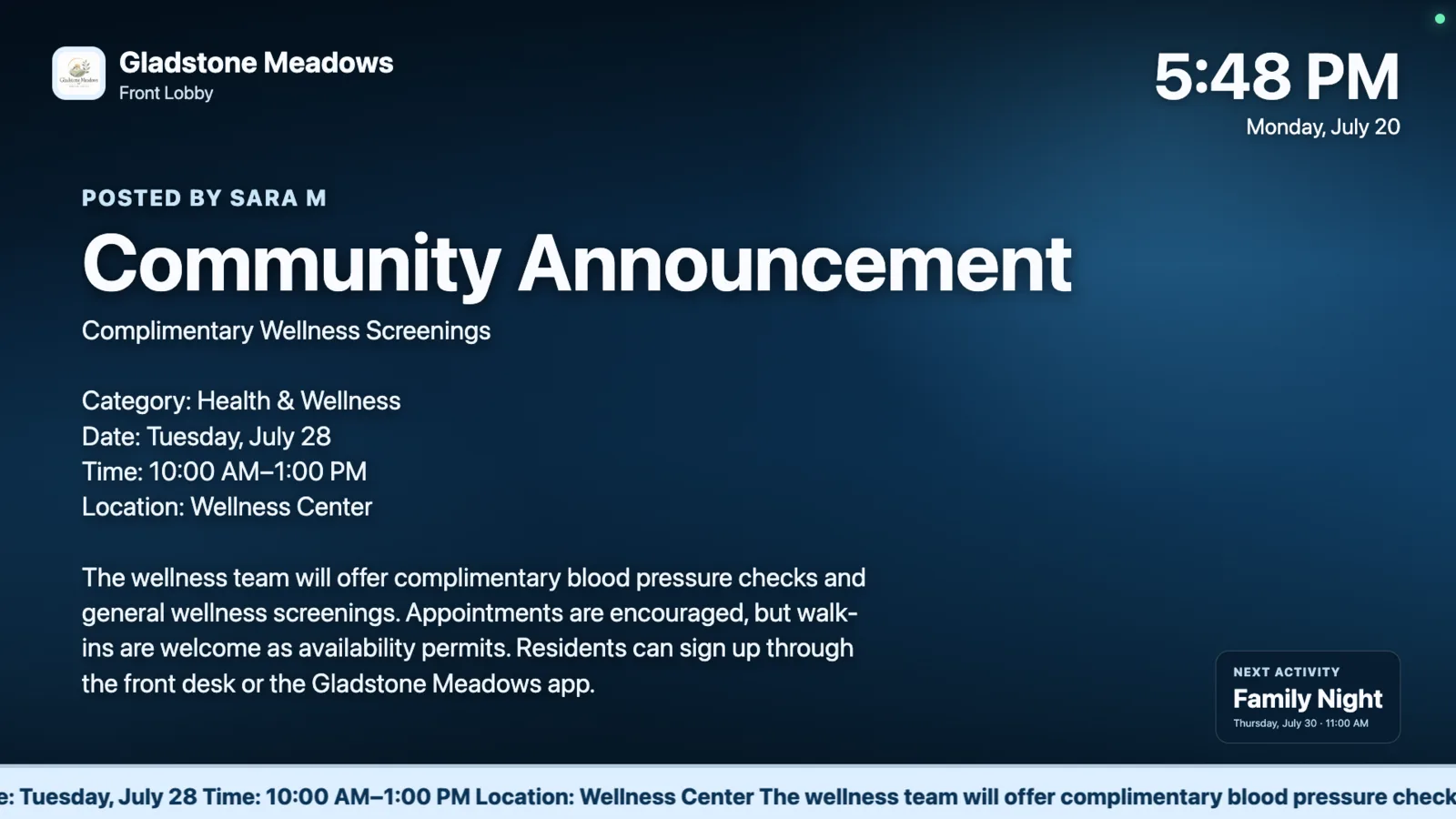
Once the hardware is in place, the useful part is the information. ChimeBuddy is designed around the kinds of updates senior living teams already manage: activities, dining, announcements, promotions, birthdays, photos, videos, and timely reminders.
That means the display can change throughout the day without someone rebuilding a PowerPoint deck, moving a USB drive, or walking from screen to screen.
Both approaches can be reasonable. The better choice depends on what hardware is already on the wall, how clean you want the installation to be, and how the specific model behaves during long-running playback.
This is the cleanest physical setup because the display and smart TV platform are one device. It can be a good choice when the community is buying a new TV anyway.
This approach can extend the useful life of an existing television when the panel itself is fine but its built-in smart software is outdated or incompatible.
The best signage installation is one staff members do not have to think about every day. A typical ChimeBuddy deployment follows a short path from compatible hardware to an assigned community screen.
Consumer televisions are designed first for home entertainment. That does not make them a bad signage choice, but it does mean the community should test the behavior that matters in a shared public space.
Not every screen needs the same playlist. A useful signage system lets the community tailor information to where residents are standing while still managing everything from one place.
Community announcements, featured activities, visitor information, welcome content, and timely notices.
Today’s menu, meal service information, dining promotions, special events, and reservation reminders.
Daily schedules, weekly calendars, monthly calendar views, recurring activities, and event highlights.
Class schedules, wellness programming, fitness reminders, and promotional content for community services.
Movie nights, game schedules, social events, tournaments, and entertainment announcements.
Service promotions, amenity availability, reservation information, hours, and location-specific messaging.
A useful buying guide should say where the limits are. Consumer Google TV hardware can be an excellent value for many indoor community displays, but commercial signage panels still have a place.
ChimeBuddy Digital Signage is available as a standalone package, so a community can modernize its TVs without purchasing the entire resident engagement platform. The standard signage plan includes up to two screens, remote content management, activity and event content, dining menus, announcements, promotions, photos, and videos.
Compatibility and hardware behavior can vary by television model, so the best rollout starts with a specific device test rather than a blanket assumption that every smart TV behaves the same way.
Yes, compatible Google TV hardware can provide the display and app platform for digital signage. The signage software still needs to handle content scheduling, screen management, playback, and community information. ChimeBuddy is designed to provide that software layer for senior living communities.
Not always. A community can use a television with Google TV built in, or in some cases add a compatible Google TV streaming device to an existing display. The exact setup should be tested on the specific model before a full rollout.
ChimeBuddy can display activities, events, announcements, dining menus, community promotions, photos, videos, birthdays, lifestyle content, and timely ticker messages. Content is managed from the ChimeBuddy facility portal rather than edited directly on each television.
Yes. ChimeBuddy includes remote screen management so authorized staff can update content and manage assigned signage without standing in front of the television.
Confirm app compatibility, network reliability, power and screen-saver behavior, display orientation, brightness, automatic updates, and how the television behaves after a restart. Consumer televisions can work well for many communities, but a commercial display may be a better fit for unusually bright spaces or very demanding operating schedules.
No. ChimeBuddy is an independent senior living software platform. Google TV is a trademark of Google LLC. References to Google TV describe platform compatibility and deployment options and do not imply endorsement.